Appearance
Fresh
Get started
Back
Get started with Docker Sandboxes
Copy as Markdown
Open MarkdownAsk Docs AIClaudeOpen in Claude
Table of contents
Availability:Experimental
Docker Sandboxes run AI coding agents in isolated microVM sandboxes. Each sandbox gets its own Docker daemon, filesystem, and network — the agent can build containers, install packages, and modify files without touching your host system.
This page walks through a typical first session: installing the CLI, authenticating your agent, running a sandbox, working with branches, and cleaning up.
Prerequisites
macOS
Windows
Linux (Ubuntu)
macOS Tahoe (26) or later
Apple silicon
64-bit Intel or AMD (x86_64)
Windows 11
Windows Hypervisor Platform enabled. Open an elevated PowerShell prompt (Run as Administrator) and run:
powershell
Enable-WindowsOptionalFeature -Online -FeatureName HypervisorPlatform -All- Ubuntu 22.04 or later
- 64-bit Intel or AMD (x86_64)
- KVM hardware virtualization supported and enabled by the CPU. If you're running inside a VM, nested virtualization must be turned on. Verify that KVM is available:
console
$ lsmod | grep kvmA working setup shows kvm_intel or kvm_amd in the output. If the output is empty, run kvm-ok for diagnostics. If KVM is unavailable, sbx will not start.
- Your user in the
kvmgroup:
console
$ sudo usermod -aG kvm $USERLog out and back in (or run newgrp kvm) for the group change to take effect.
An API key or authentication method for the agent you want to use. Most agents require an API key for their model provider (Anthropic, OpenAI, Google, and others). See the agent pages for provider-specific instructions.
Docker Desktop is not required to use sbx.
Install and sign in
macOS
Windows
Linux (Ubuntu)
console
$ brew install docker/tap/sbx
$ sbx login
powershell
> winget install -h Docker.sbx
> sbx login
console
$ curl -fsSL https://get.docker.com | sudo REPO_ONLY=1 sh
$ sudo apt-get install docker-sbx
$ sbx login
The first command adds Docker's apt repository to your system.
If you need to install sbx manually, download a binary directly from the sbx-releases repository.
sbx login opens a browser for Docker OAuth. On first login (and after sbx policy reset), the CLI prompts you to choose a default network policy for your sandboxes:
plaintext
Choose a default network policy:

     1. Open         — All network traffic allowed, no restrictions.
     2. Balanced     — Default deny, with common dev sites allowed.
     3. Locked Down  — All network traffic blocked unless you allow it.

Use ↑/↓ to navigate, Enter to select, or press 1–3.
Balanced is a good starting point — it permits traffic to common development services while blocking everything else. You can adjust individual rules later. See Policies for a full description of each option.
Note
See the FAQ for details on why sign-in is required and what happens with your data.
Authenticate your agent
Agents need credentials for their model provider. How you provide them depends on the agent.
For Claude Code with a Claude subscription (Max, Team, or Enterprise), no upfront setup is needed — use the /login command inside the sandbox to sign in with OAuth. The session token stays on your host and is injected by a proxy, not stored inside the sandbox.
For agents that use API keys (or if you prefer API key authentication for Claude Code), store the key before starting a sandbox:
console
$ sbx secret set -g anthropicThis prompts for the secret value and stores it in your OS keychain. A proxy on your host injects the key into outbound API requests so it's never exposed inside the sandbox. See Credentials for details on scoping, supported services, and alternative methods.
To give the agent access to GitHub for creating pull requests or interacting with repositories:
console
$ sbx secret set -g github -t "$(gh auth token)"Run your first sandbox
Pick a project directory and launch an agent with sbx run:
console
$ cd ~/my-project
$ sbx run claude
Replace claude with the agent you want to use — see Agents for the full list.
The first run takes a little longer while the agent image is pulled. Subsequent runs reuse the cached image and start in seconds.
You can check what's running at any time:
console
$ sbx ls
SANDBOX              AGENT    STATUS    PORTS   WORKSPACE
claude-my-project    claude   running           ~/my-project
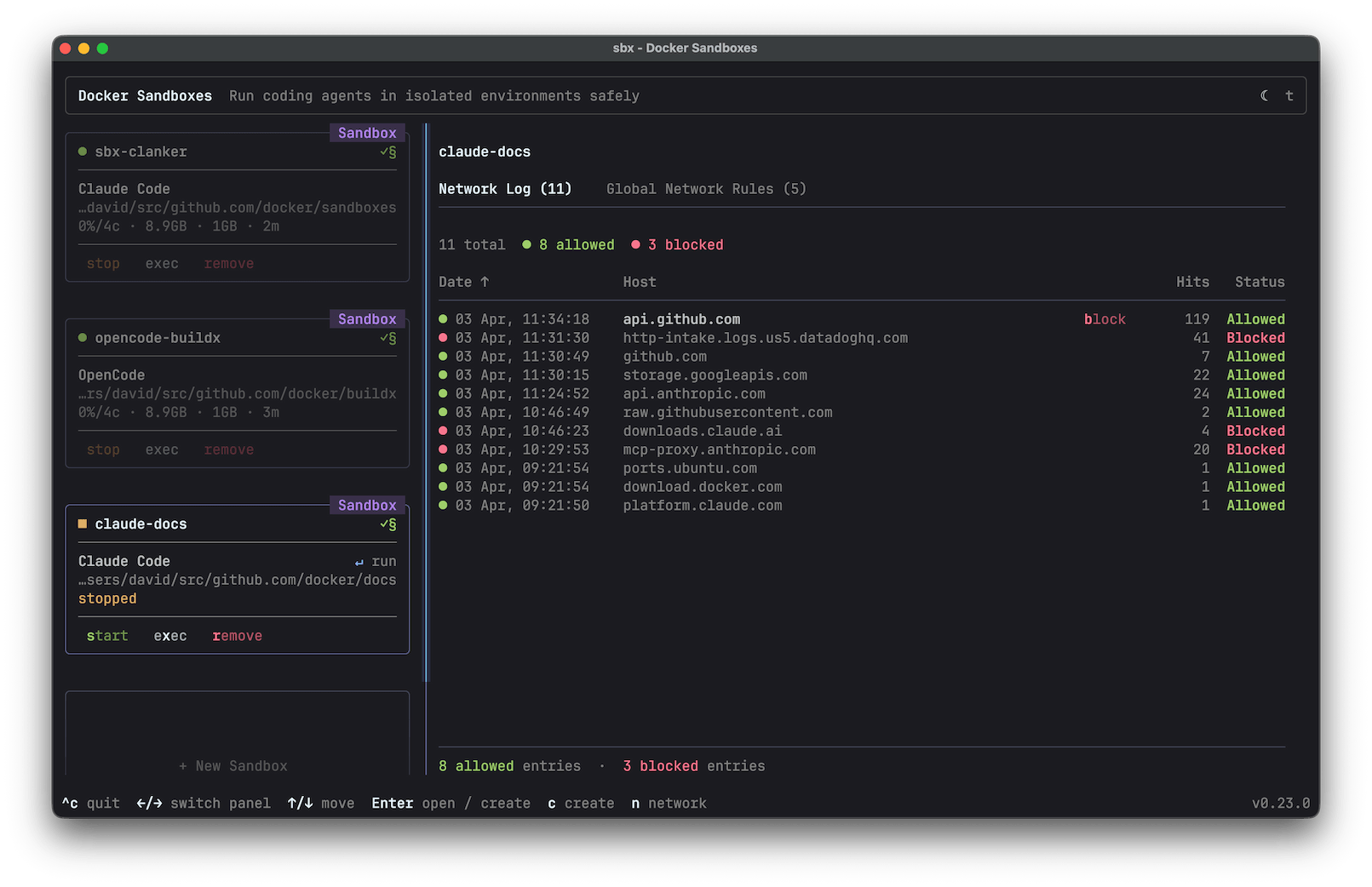
You can also run sbx with no arguments to open an interactive dashboard. The dashboard shows your sandboxes with live status, lets you attach to agents, open shells, and manage network rules from one place. See Interactive mode for details.
Use branch mode
By default, the agent edits your working tree directly. To give it its own Git branch, use --branch:
console
$ sbx run claude --branch my-featureThis creates a Git worktree under .sbx/ in your repository root. The agent works on its own branch and directory without touching your main working tree.
When the session ends, review what the agent did from the worktree:
console
$ cd .sbx/<sandbox-name>-worktrees/my-feature
$ git log
$ git diff main
If you're satisfied, push the branch and open a pull request:
console
$ git push -u origin my-feature
$ gh pr create
Branch mode is especially useful when running multiple agents on the same repository — each gets its own branch and can't overwrite the other's changes. See Branch mode for more options, including --branch auto and multiple branches per sandbox.
Manage network access
Your network policy controls what the sandbox can reach. If the agent fails to connect to an API or service, it's likely blocked by the policy.
Check which rules are in effect:
console
$ sbx policy lsTo allow a specific host:
console
$ sbx policy allow network registry.npmjs.orgWith Locked Down, even your model provider API is blocked unless you explicitly allow it. With Balanced, common development services are permitted by default. See Policies for the full rule set and how to customize it.
Clean up
Sandboxes persist after the agent exits. To stop a sandbox without deleting it:
console
$ sbx stop my-sandboxInstalled packages, Docker images, and configuration changes are preserved across restarts. When you're done with a sandbox, remove it to reclaim disk space:
console
$ sbx rm my-sandboxRemoving a sandbox deletes everything inside it — installed packages, Docker images, and any branch mode worktrees under .sbx/. Files in your main working tree are unaffected.
Next steps
- Usage guide — sandbox management, reconnecting, multiple workspaces, port forwarding, and more
- Agents — supported agents and configuration
- Custom environments — build your own sandbox images
- Credentials — credential storage and management
- Workspace trust — review agent changes safely
- Policies — control outbound access